Technical Introduction
Terminology
The BrainFrame documentation uses terms that are common in video analytics but may have different meanings in other fields. We also use a few generic terms to describe specific BrainFrame concepts. If you are new to video analytics or are ever confused by a term, please take a look at this guide.
| Term | Meaning |
|---|---|
| Stream | The live stream that is being fed to the Client or to the Server. A stream is video of some sort, from a video file, webcam, or IP camera. |
| Detection | A machine learning detection consists of a bounding box, represented by coords, and a class_name (e.g., person, car, dog). Additionally, a detection can include classification attributes, formatted as a category:value pair, along with extra key:value pairs stored as extra_data for customization. |
| Zone | A region or a line configured by the user within the frames of a video stream. By default, the server automatically configures the entire frame as a region named screen. |
| Region | A spatial area represented by polygon coords. It can represent a specific physical space, such as a door or an area on the floor. The server automatically counts detections within, entering, or exiting this region. |
| Line | A boundary represented by coords. The server automatically counts detections that cross (entering or exiting) this line, as well as detections currently positioned on (within) it. |
| Alarm | A set of conditions (rate_conditions or count_conditions) that must occur in a stream in order for an alert to be raised. |
| Alert | An instance of a specific Alarm occurring. Alerts have a start_time and an end_time. You can see a log of alerts under the In-Focus view for a stream. Alert can be verified by human input, setting verified_as to true or false. |
| Journaling | Writing analysis results to a SQL database. |
Architecture Diagram
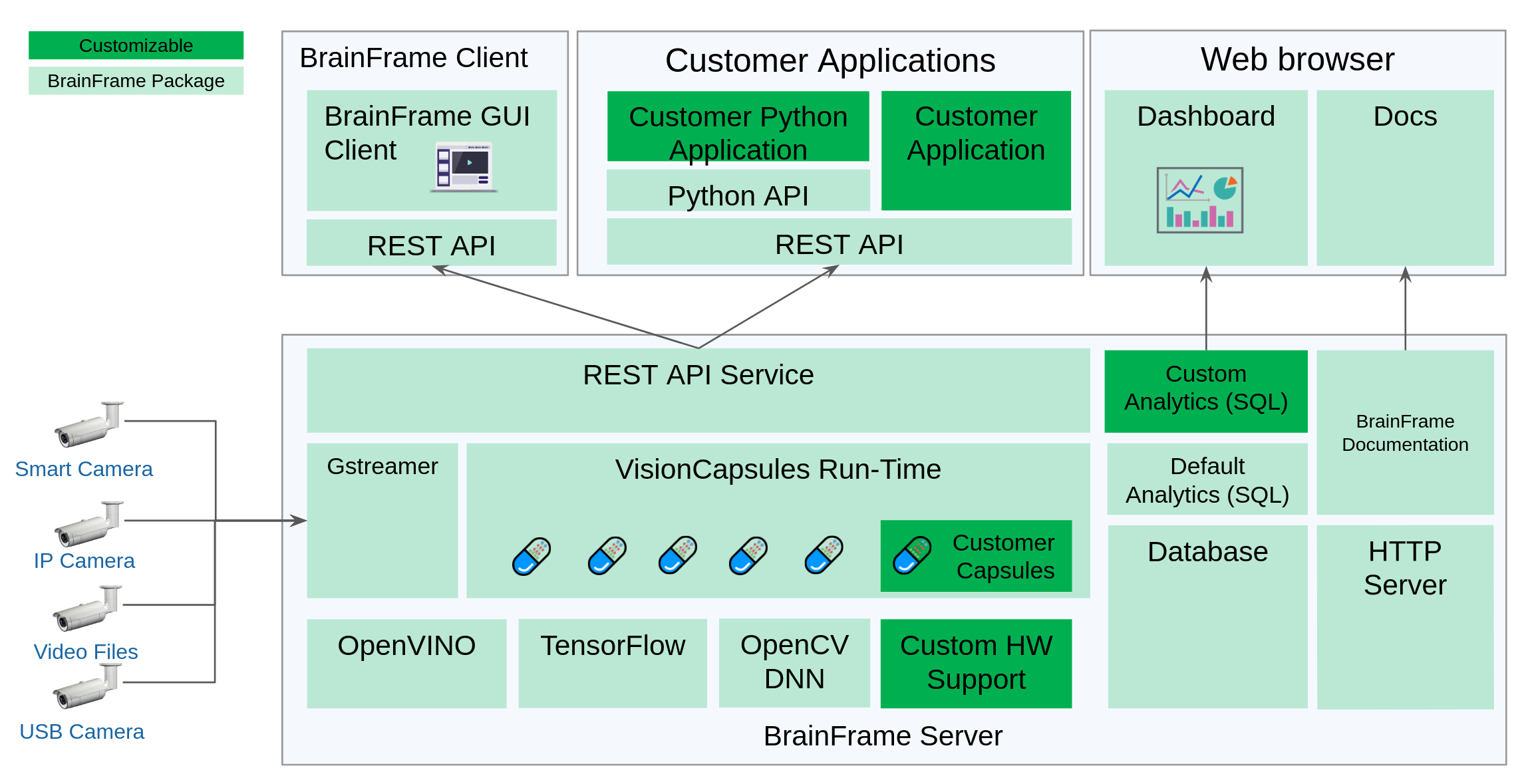
Real-time inference results: Zone Statuses
BrainFrame Applications receive real-time inference results as zone statuses from the GET /api/streams/statuses API. Zone statuses are coalesced and published as a complete state snapshot to all subscribed clients. This happens at a bounded rate (defaults to 20 FPS). The applications receive these continuously via a streaming multipart JSON HTTP response through GET /api/streams/statuses. Some of the useful information contained in zone statuses are:
tstamptotal_entered/total_exited(per object type)zone:name,coordsalarms:name,active_start_time,active_end_timecount_conditionswith_class_name,with_attribute(category,value)test,intersection_point,check_valuewindow_duration,window_threshold
rate_conditionswith_class_name,with_attribute(category,value)test,intersection_point,change,direction(entering,exiting,entering_or_exiting)duration
within,entering,exiting arrays:class_name,coordswith_identity:id,unique_name,nickname,metadatachildrenattributes,extra_datatrack_id
alertsalarm_id,zone_id,stream_idstart_time,end_timeverified_as
Info
Zone status entering and exiting arrays will be empty without tracking. These arrays are independent of the entering, exiting, and entering_or_exiting parameters of an alarm's rate_conditions.direction.
Users can observe object detections inside a zone or crossing a line, and see triggered alerts in real time on the BrainFrame Client video overlay. This includes tracking trajectories, entry and exit directions, and counting the number of detections within a zone. The information displayed on the BrainFrame Client UI maps to the REST API as shown in the following tables:
For Zone:Alarm
| Detection Type | UI Representation | Scope | REST API Endpoint | REST API Field |
|---|---|---|---|---|
| Alerts | Total # of all alarms | Since DB Creation | /api/alerts | Total-Count |
| Alert Trigger | Timer, Highlight Zone | During Active | /api/streams/statuses | alerts, end_time |
| Alert Direction | Highlight Arrow (enter only) | During Active | /api/zone_alarms | rate_condition.direction |
For Zone:Line
| Detection Type | UI Representation | Scope | REST API Endpoint | REST API Field |
|---|---|---|---|---|
| Trigger | Timer, Highlight Zone | Crossing | /api/streams/statuses | entering, exiting or within |
| Direction | Highlight Arrow (enter only) | Crossing | /api/streams/statuses | entering |
| ENTER | Total # Per class_name | Since Bootup | /api/streams/statuses | total_entered |
| EXIT | Total # Per class_name | Since Bootup | /api/streams/statuses | total_exited |
| WITHIN | Total # Per class_name | Current Frame | /api/streams/statuses | len(within) |
For Zone:Region
| Detection Type | UI Representation | Scope | REST API Endpoint | REST API Field |
|---|---|---|---|---|
| Trigger | Timer, Highlight Zone | Current Occupancy | /api/streams/statuses | within |
| Direction | Highlight Arrow (enter only) | Crossing | /api/streams/statuses | entering |
| ENTER | Total # Per class_name | Since Bootup | /api/streams/statuses | total_entered |
| EXIT | Total # Per class_name | Since Bootup | /api/streams/statuses | total_exited |
| WITHIN | Total # Per class_name | Current Frame | /api/streams/statuses | len(within) |
Zone (Line or Region)
Applications can create Zones using Zone Control and Alarm Control, and then receive the detection results via the GET /api/streams/status or GET /api/streams/statuses endpoints.
Detections can be within, entering, or exiting a zone (line or region). Every frame will be analyzed to update the within, entering, and exiting arrays for publishing through the zone statuses REST API.
When the within array contains detections within a Zone:Region, the BrainFrame Client renders the region as "active" (lighting up), and displays the class_name and number of detections next to the boundary of the region whenever the incoming Zone Statuses payload indicates that its within array contains at least one detection.
When tracking is enabled, the entering or exiting arrays may contain detections with directions against a Zone:Line. The BrainFrame Client renders the zone (line only) as "active" (lighting up), and displays the class_name (e.g., person, car, dog), and total_entered/total_exited of the detections under "ENTER" and "EXIT" next to the line whenever the incoming Zone Statuses payload indicates that its entering or exiting array contains at least one detection.
Alarms and Alerts
Applications can set count-based or rate-based alarms for a zone (line or region) via POST /api/zone_alarms endpoint or retrieve via GET /api/zone_alarms endpoint. BrainFrame services continuously evaluate these alarms using internal algorithms. When an alarm is triggered:
-
The alert is published to the REST API in real-time as active (ongoing) or inactive alerts inside the Zone Statuses, and is available through GET /api/streams/statuses endpoint.
-
Alert Lifecycle: When an alarm triggers, the generated Alert object receives a
start_time. Itsend_timeremains null (ongoing) until the condition evaluates toFalse, at which point theend_timeis stamped, and the alert becomes inactive. -
Line Crossings are determined by comparing the bounding box's bottom center (or other intersection_point) from the previous frame to the current frame against the line coordinates. A temporal debounce filter is applied to ensure a single track_id does not trigger multiple crossings if it jitters over the line.
-
The alert is written to the database, and is available for querying through GET /api/alerts.
Here is a comparison of alarms for a zone (line or region):
| API Field / Feature | Line: Count Based | Line: Rate Based (Default) | Region: Count Based (Default) | Region: Rate Based |
|---|---|---|---|---|
| Condition Class | count_conditions |
rate_conditions |
count_conditions |
rate_conditions |
| Depends on tracking | No | Yes | No | No |
active_start_time, active_end_time |
Default to null |
Default to null |
Default to null |
Default to null |
with_class_name |
Target object class | Target object class | Target object class | Target object class |
with_attribute |
category:value |
category:value |
category:value |
category:value |
test against |
>, <, =, != check_value |
>=, <= change |
>, <, =, != check_value |
>=, <= change |
Alarm trigger: intersection_point |
Base point touches or crosses the line based on proximity | Base point crosses the line | Base point falls inside the polygon's boundaries | Base point falls inside the polygon's boundaries |
direction |
- | entering, exiting, entering_or_exiting |
- | entering, exiting, entering_or_exiting |
| Time Evaluation Window | Evaluates the current frame. window_duration, window_threshold are ignored |
Evaluates changes of all frames that occurred over the specified duration: Default to 1.0s, Min 0.05s, Max 30s |
Evaluates all frames that occurred over the specified window_duration: Default to 5s, Max 30s. window_threshold Default to 0.5 |
Evaluates changes of the current frame against all past frames within the specified duration: Default to 1.0s, Min 0.05s, Max 30s |
Info
Line: Rate Based Alarm depends on tracking.
Tracking
Tracking is provided by tracker capsules; for example, the tracker_vehicle_iou capsule is available from the VisionCapsule AI Marketplace. Tracking works through the following stages:
-
Per Frame Match: When a detection occurs, the tracker compares detections between consecutive frames. If there is a match, it initializes a track. When using Intersection Over Union (IOU), a match is determined by the
min_iou_for_iou_matchparameter. -
Tracking Initialization: When a detection match occurs, the tracker creates a tentative track.
-
Tracking Start: After seeing a tentative track for a consecutive number of frames (
min_track_length), the track becomes confirmed. Tracking Start triggers atrack_idto be added to thewithin,entering, orexitingarrays of zone statuses. The BrainFrame Client renders a trajectory on the video frame UI, colored per object type. -
Track Loss: If a detection leaves the frame or is occluded, the tracker increments a "miss" counter. The BrainFrame Client hides the trajectory from the video frame UI.
-
Tracking Removed: If a tracked vehicle is not matched to a detection in subsequent frames, its internal misses counter increments. Once misses exceeds
max_misses, the track is marked as deleted by the tracker. Further down the pipeline, the SceneTracker clears tracking history entirely if no matches occur after a period of time.