BrainFrame CLI
The BrainFrame Command Line Interface (CLI) is used to install, update, and manage the lifecycle of the BrainFrame server and system. It includes the following commands:
brainframe: Start and stop BrainFrame server, and manage other related controls.brainframe-onvif-tools: Discover, scan, and validate cameras on the local network.brainframe-apps: Interact with BrainFrame server via REST API. For example: add and delete streams, start and stop analysis, process images, get zone statuses.brainframe-sys-tools: Manage the server system, including AI inference FPS benchmarking, performance monitoring, server monitoring, etc.openvisioncapsule-tools: Package models, and test and validate the capsules (intended for VisionCapsule developer).
Command Structure
All CLI commands are structured as
[BrainFrame CLI Command] [Sub-Command] [Arguments]
To view a list of commands, you can use
[brainframe CLI Command] --help
To view help for a specific sub-command, you can use
[BrainFrame CLI Command] [Sub-Command] --help
Helpful Commands
These are the general commands we expect users to use most often, so we are highlighting them below.
Here, we assume both the BrainFrame CLI and the BrainFrame Server are running on localhost. The BrainFrame Server IP needs to be specified if it is not on localhost:
--server-url SERVER_URL
Command: brainframe
The BrainFrame server consists of several smaller microservices, which are containerized using Docker. The
lifecycle and control of those services are delegated to Docker Compose, which orchestrates the containers. The brainframe command is the single command used to start and stop BrainFrame server, as well as to manage other related controls.
For instructions on the installation of the CLI, please refer to our getting started guide.
You always want to have the latest version of the CLI. To update, run:
sudo -H pip3 install --upgrade brainframe-cli
Starting the server
brainframe compose up -d
If you remove the -d flag, it will attach the logs stream to your terminal,
and allow you to close the server when you Ctrl+C.
Stopping the server
brainframe compose down
Restarting the server
brainframe compose up -d
Updating the server
sudo brainframe update
Streaming Logs
To view all logs, run:
brainframe compose logs -f
To view logs just for the core service, run:
brainframe compose logs -f core
Command: brainframe-onvif-tools
Installation
pip install brainframe-onvif-tools
Note: This tool is tested on Python 3.10.20
Discover onvif devices
This command discovers IP devices (such as IP cameras and NVRs) on the local network. It saves the IP addresses in a config.csv file.
brainframe-onvif-tools discover
You can edit the config.csv file to add or remove devices that you don't want to probe or validate in the following steps.
Scan onvif devices
This command probes the ONVIF-compatible devices discovered in the config.csv file:
brainframe-onvif-tools scan --user USER --password PASSWORD
If --user and --password are not provided, the command defaults to using the credentials.txt file (included with the brainframe-onvif-tools packages) to probe the devices. It then updates config.csv with the credentials and main device information, and saves detailed device specifications to camera_onvif_info.json.
Validate onvif device
This command validates RTSP credentials, updates the ONVIF records inside camera_onvif_info.json, and captures and saves video stream snapshots:
brainframe-onvif-tools validate
Command: brainframe-apps
Installation
pip install brainframe-apps
Note: This tool is tested on Python 3.10.20
Add, delete and list streams If you used brainframe-onvif-tools to generate a config.csv file, you can now use the add-stream command to add all camera devices to BrainFrame:
brainframe-apps add-stream --stream-urls config.csv
Other available commands:
brainframe-apps add-stream --stream-url STREAM_URL
brainframe-apps delete-stream
brainframe-apps list-stream
Load and save settings The load-settings and save-settings commands load and save all settings for BrainFrame Streams. This includes the information managed by the --cmd save and --cmd load arguments of zone-control and alarm-control."
brainframe-apps load-settings --stream-urls config.csv --setting-file SETTING_FILE
brainframe-apps save-settings
Start and stop analyzing
brainframe-apps start-analyzing
brainframe-apps stop-analyzing
Get zone statuses
brainframe-apps get-zone-statuses
Process image
brainframe-apps process-image --image-path IMAGE_PATH
Capsule control
brainframe-apps capsule-control --capsule-filename CAPSULE_FILENAME --cmd load
Alarm control
brainframe-apps alarm-control --cmd list
brainframe-apps alarm-control --cmd save
brainframe-apps alarm-control --cmd load
Zone control
brainframe-apps zone-control --cmd list
brainframe-apps zone-control --cmd save
brainframe-apps zone-control --cmd load
Identity control
brainframe-apps identity-control
License control
brainframe-apps license-control
User control
brainframe-apps user-control
Command: brainframe-sys-tools
Installation
pip install brainframe-onvif-tools
Note: This tool is tested on Python 3.10.20
Inference FPS monitor
brainframe-sys-tools fps-monitor
The FPS monitor displays the inference output speed per stream, measured via the REST API, alongside several diagnostic metrics. All time-based metrics (Buf, Age, Dsync, and Drift) are measured in seconds. These metrics rely on the monitor script's local history buffer to track performance.
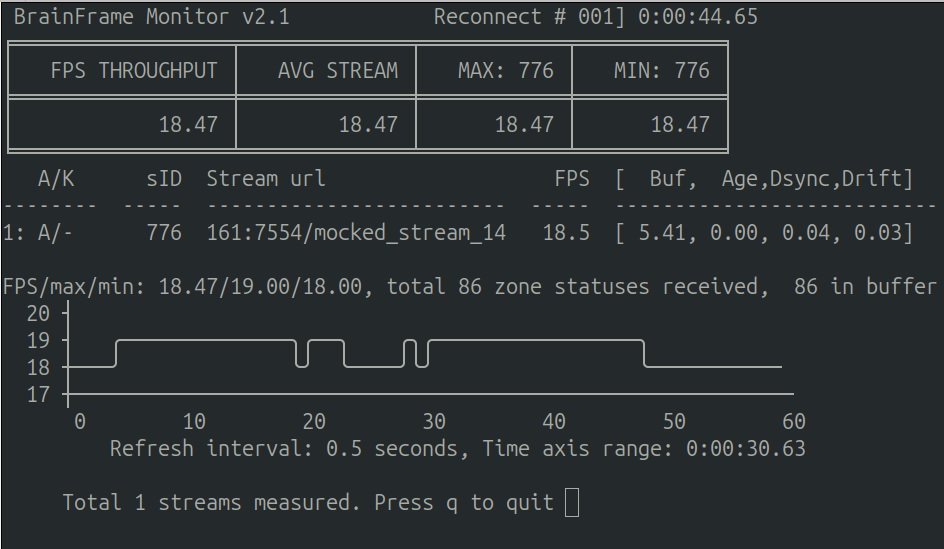
- Buf (Local Buffer Duration): The total duration spanning the monitor's local history buffer. It is calculated as the difference between the local receive time of the newest zone status and the oldest zone status currently in the buffer. By default, the buffer holds a maximum of 100 samples. Once full, it acts as a sliding window; Buf will stabilize to show exactly how many seconds it took to receive the last 100 data frames.
- Age (Data Freshness): The elapsed time since the monitor received the most recent zone status. It is measured as the monitor's current local time minus the local receive time of the newest buffered zone status.
- Dsync (Pipeline Latency): The difference between the monitor's local receive time and the data frame timestamp of the latest zone status provided by the REST API. Do not rely on Dsync for latency measurements if the machine clocks are not synchronized.
- Drift (Stream Clock Drift): The difference between the elapsed data frame time and the elapsed local receive time since monitoring began. It is calculated by taking the elapsed data frame timestamp time minus the elapsed local receive time. This helps identify if the stream processing is falling progressively behind real-time.
A continuous log file of the FPS throughput history will be automatically saved for later review.
System performance monitor
brainframe-sys-tools perf-monitor
The following performance metrics are monitored:
- System Uptime
- CPU Usage and Temperature
- Memory Usage and Top Memory Consumers
- Storage
- iGPU Usage
- GPU Usage and Temperature
- Board and NVMe Temperature
A continuous log file of the performance history will be automatically saved for later review.
System service monitor
brainframe-sys-tools service-monitor --log-path LOG_PATH --interval INTERVAL --threshold THRESHOLD --start-now False
This is the BrainFrame service monitor. Running the command with no arguments will launch the BrainFrame service and monitor its heartbeats. It will automatically restart the service if heartbeats are not observed within the specified timeout threshold.
For example, the command below monitors the heartbeats at an interval of 2 seconds. The command will not launch BrainFrame automatically because --start-now False is specified:
brainframe-sys-tools service_monitor --log-path ~/workspace --interval 2 --threshold 6 --start-now False
If communication with BrainFrame fails, or if a heartbeat delay exceeds 6 seconds, the service monitor will save the following log files to the ~/workspace directory and then restart the BrainFrame service:
<timestamp>_hearbeat.log<timestamp>_brainframe.log<timestamp>_sys.info
The default heartbeat interval and timeout threshold can be found in the arguments' descriptions.
System information capturing
brainframe-sys-tools sys-info -f FILE
This tool displays system and machine information and saves it to a file, for example:
- BrainFrame configuration and system information
- System date and uptime
- Linux OS/kernel version
- CPU information
- GPU and iGPU details
- Installed dpkg/apt packages
Command: openvisioncapsule-tools
Installation
pip install openvisioncapsule-tools
Note: This tool is tested on Python 3.9.24
Package VisionCapsules
This command packages and unpackages VisionCapsules using the specified directory and key:
openvisioncapsule-tools capsule_packaging --capsule-dir CAPSULE_DIR --capsule-key CAPSULE_KEY
Test VisionCapsules
This command runs inference locally to test a specific VisionCapsule:
openvisioncapsule-tools capsule_inference --images IMAGES --detection DETECTION
Probe inference acceleration devices
This command probes the system for all available inference acceleration hardware and software frameworks.
openvisioncapsule-tools devices
The output includes details such as:
- CPU information
- Intel OpenVINO version
- Intel OpenCL version
- NVIDIA GPU model and CUDA version
- Linux kernel/OS version and Python version
- PyTorch (
torch) version - TensorFlow version
- VisionCapsule version